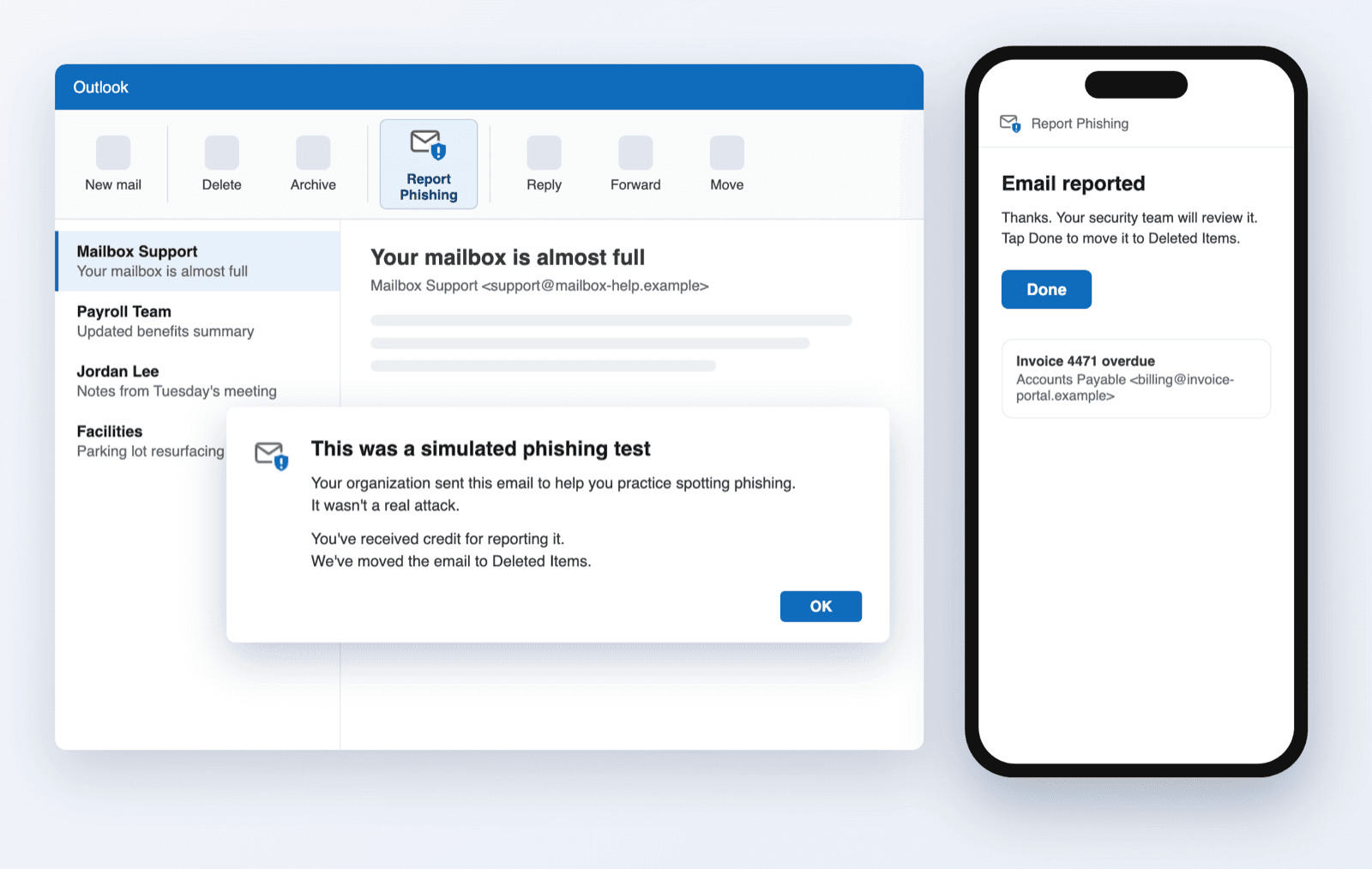
Until now you chose between a Report Phishing button that worked on phones and one that sat in Outlook's own Report menu. The current button does both, and adds what partners asked for most.
Every Outlook, Phones Included
The Report Phishing button now covers every Outlook your clients use: it takes the place of Outlook's own Report button on Windows, the web and Mac, and adds a Report Phishing button on iPhone and Android. Download it from the client's Tailor › Report Phishing Button page; clients on Version 3 upgrade in place with Update in Microsoft 365 admin center.
- Windows (classic and new), the web and Mac: in Outlook's own Report button
- iPhone and Android: a Report Phishing button on every email
- Clients on Version 3: choose Update on the existing app, nothing to reinstall
Users Know Exactly What Happened
With the current button, users are asked whether to send the email to their security team before anything happens, and told afterwards what it was: a simulated phishing test they've received credit for, a real report sent to the security team, or one of their organization's own emails. They're also told where the email went.
Reports From the User, When You Want Them
A new setting, Send reports from the user, has the Report Phishing button forward each report from the reporting user's own mailbox instead of our reporting address, so a ticketing system that matches clients by sender domain files it under the right company. Set your default under Settings › Phishing and override it per client on Tailor › Report Phishing Button, where you can also see whether the client's Microsoft sign-in is working.
See Which Button Each Client Uses
The client's Tailor › Report Phishing Button page has a new What we're seeing panel: which version of the button users reported with in the last 30 days, from which Outlook clients, and when we last saw each. Use it to confirm a rollout or spot users still on an older version.
- The Report Phishing check on each client's Health page, and in the Global Health report, now shows a warning when users still report with an older version of the button (Version 1, 2 or 3), and tells you how to move them to the current one
- It also alerts when the button's Microsoft sign-in for a client has stopped working