September brought partners more control over how training looks to their clients and new ways to show its value, plus a handful of time-savers across reports and phishing.
Learning portal on your own domain
Put the learning portal on your own hostname, so the address bar, training emails and every shared link carry your brand.
Risk Progress report
A new report that shows whether a client got safer over the last year, who moved, and whether the improvement was earned.
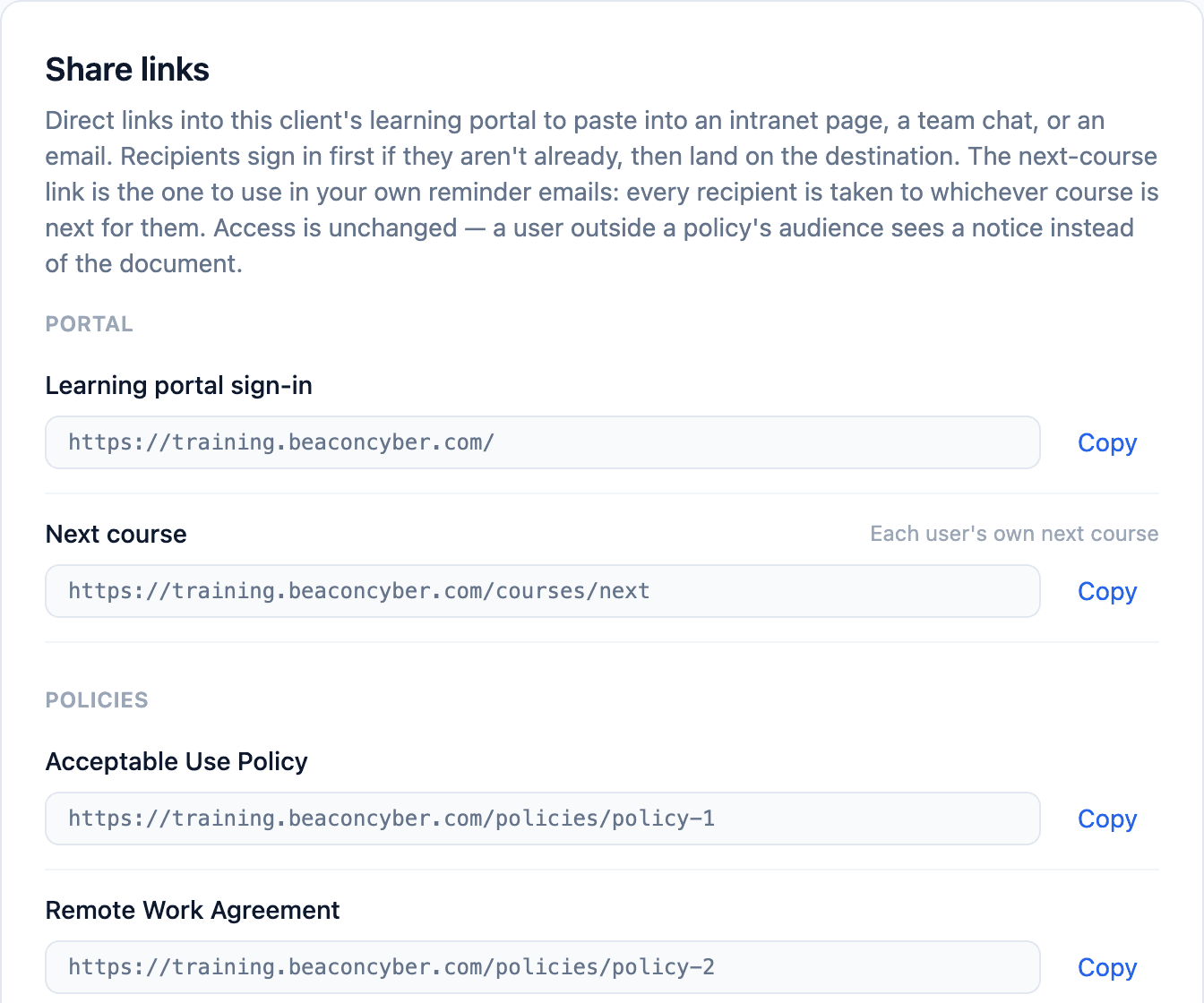
Share links to policies, courses and what's next
Admins can now copy a direct link to any policy, any assigned course, the portal sign-in, or whatever course is next for each person, from Tailor → Share links on the client page. Paste them into an intranet page, a team chat or your own reminder email: users who are already signed in land straight on the destination, and everyone else signs in first and is taken there afterwards. The next-course link picks the right course per recipient, so one link serves a whole client.
Open reports as soon as they're ready
When you generate a report from Reports › Generate, a notification now tells you when it's ready, with buttons to open it straight away or email it to yourself. If you do nothing, it's emailed after a short countdown, and if you close the tab it's still emailed, so you never lose one. The Archive tab also has a new Open button that shows a PDF in your browser instead of downloading it.
Client name on reported-phishing forwards
When a user reports a suspicious email with the Report Phishing button in Outlook, the email forwarded to you now ends its subject with the client's name in brackets, such as [Acme Corp]. If you send these into a PSA, you can route each ticket to the right company automatically. The start of the subject hasn't changed, so your existing mail rules still match.
Choose whether simulations show "External"
You can now choose whether phishing simulations sent through Microsoft 365 carry Outlook's "External" tag. It stays on by default, since real phishing comes from outside, but you can turn it off for every client under Settings › Phishing or for one client under its Manage › Phishing page. Gmail decides its own external labels, so the setting applies to Microsoft 365 only.